Gemini Omni vs Google Flow
Gemini Omni vs Google Flow
Gemini Omni vs Google Flow: What’s the Difference (and Which One Do You Actually Need)?
I spent about twenty minutes confused about this myself before it clicked. You read one article that says “Gemini Omni is Google’s new AI video model,” then you read another that says “Google Flow is Google’s AI filmmaking tool,” and both of them are talking about video, both mention Google, both came out around the same time. So naturally you assume they’re just two names for the same thing, maybe a rebrand, maybe regional naming. They’re not.
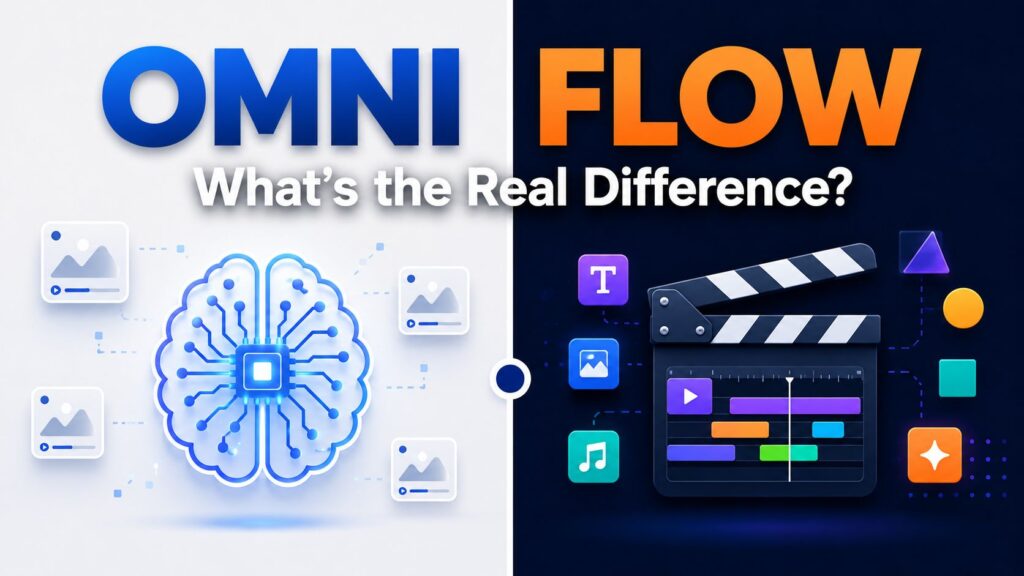
Here’s the short version before we get into it properly: Gemini Omni is the engine. Google Flow is the car. One is the AI model doing the actual thinking and generating. The other is the workspace you sit inside to use that model, along with a few other models, to actually build something. Once that distinction clicks, the rest of the confusion mostly sorts itself out.
Start With What Gemini Omni Actually Is
Gemini Omni is Google’s first genuinely any-to-any multimodal model, announced at Google I/O 2026. “Any-to-any” is the part worth sitting with for a second, because it’s not just marketing language. It means the model can take text, images, audio, and video as input, and produce video as output, all within the same unified system, rather than stitching together separate specialized tools for each media type.
The first version to actually ship was Gemini Omni Flash, which went into public preview and now sits inside the Gemini app, Google Flow, and YouTube. What makes it different from a typical text-to-video generator isn’t just that it makes video, it’s that it edits conversationally. You can generate a clip, then say “swap the background to a city street,” then follow that with “make the lighting warmer,” then “stabilize the shot,” and the model builds on each instruction rather than starting over from scratch every time. The scene stays coherent across all of it, meaning the same character, the same lighting logic, the same background, holds steady through multiple rounds of editing.
According to Google DeepMind’s own page on the model, this reduces production time considerably for creators who’d otherwise need to regenerate an entire clip just to fix one small detail. That’s genuinely useful if you’ve ever used an earlier-generation AI video tool and gotten frustrated re-rolling an entire ten-second clip because one element was slightly off.
Every clip Omni generates carries an invisible SynthID watermark by default, which survives re-encoding and resizing, along with C2PA Content Credentials, meaning the content’s AI origin stays verifiable even after it’s been edited, reposted, or converted to a different format.
Now Here’s What Google Flow Actually Is
Flow isn’t a model at all, it’s a workspace. Specifically, it’s Google’s dedicated AI filmmaking platform, originally announced back at I/O 2025, built to let creators produce cinematic-quality video using natural language instead of traditional production equipment or editing software expertise.
For its first year, Flow ran primarily on Veo, Google’s dedicated video generation model. Then, on February 25, 2026, Google shipped what by most accounts was one of the more significant updates in the AI creative tools space that year. According to a detailed breakdown from Vidau’s coverage of the update, Google merged three previously separate products, Flow, Whisk (a visual mood-board and collage tool), and ImageFX (Google’s text-to-image generator), into one unified interface. That turned Flow from a single-purpose video generator into something closer to a full creative pipeline: mood board, to still image, to animated and audio-synced video, all without leaving the same workspace.
Inside that merged workspace, Flow now runs multiple models working together rather than just one. Veo 3.1 handles the actual video generation, notably with native synchronized audio generated at the same time as the visuals rather than layered on afterward in post-production. Nano Banana handles in-workspace image generation for building out characters and scenes. And Gemini, including Gemini Omni specifically for Pro and Ultra subscribers, serves as what amounts to the intelligence layer, the part that understands your instructions and translates plain-language direction into specific technical adjustments.
A feature called SceneBuilder is what separates Flow from a basic prompt-to-clip generator, according to a walkthrough from WhiskAILabs’ filmmaking guide. It’s a timeline-based editor for assembling multiple shots into an actual sequence, with consistent characters and settings carried across scenes, rather than a pile of disconnected ten-second clips you’d have to stitch together yourself in a separate editing program.
Putting Them Side by Side
Here’s the comparison that would have saved me those twenty minutes of confusion:
| Gemini Omni | Google Flow | |
|---|---|---|
| What it is | An AI model | A creative workspace/platform |
| What it does | Generates and conversationally edits video from any input type | Houses multiple models for full video production |
| Where you access it | Gemini app, YouTube, inside Flow, via API | flow.google.com, dedicated Android app |
| Models it uses | Itself (Omni Flash is the current version) | Veo 3.1, Nano Banana, Gemini/Gemini Omni, Imagen 4 |
| Best for | Quick conversational edits, single clips, embedding into your own app via API | Full multi-shot productions, structured storytelling, brand campaigns |
| Standalone use | Yes, via Gemini app or API | Yes, as the primary workspace |
The cleanest way to think about it: if you just want to generate or tweak one video clip through conversation, “make the lighting warmer,” “swap this character’s outfit,” you’re using Gemini Omni’s capabilities directly, whether that’s inside the Gemini app or through Flow’s interface. If you’re trying to build something with structure, multiple scenes, consistent characters across those scenes, camera direction, a beginning and an end, that’s Flow’s job, and Omni is one of several models working underneath it to help you get there.
Why Google Built Two Things Instead of One
It’s a fair question, and the answer comes down to audience. Omni is built to be embeddable and lightweight, the kind of model a developer can call through an API to add conversational video editing into their own product, the way Adobe and WPP have reportedly already integrated it into their own creative platforms, according to Google’s own Cloud blog covering the model’s developer release. That’s a very different use case from someone sitting down to make a two-minute branded video with structured scenes and camera direction.
Flow, on the other hand, is built to be a destination, not a component. It’s the finished product for creators who want to actually sit down and make something without wiring together an API themselves. Google has been explicit that it isn’t retiring Veo or narrowing Flow’s audience in favor of Omni. Instead, according to reporting from Orbilontech’s breakdown of the ecosystem, the two are positioned for genuinely different audiences: Omni for chat-native, conversational creation inside consumer surfaces like the Gemini app and YouTube, and Veo for developers and enterprise teams building custom video pipelines on Vertex AI, with Flow sitting as the creative workspace that pulls several of these pieces together for hands-on production work.
What This Actually Costs
Pricing is where the two diverge again, and it’s worth being specific here rather than vague, since this is usually the deciding factor for anyone trying to figure out which one to actually commit to.
Gemini Omni Flash is accessible through the free Gemini app tier for basic use, and through Google AI Studio and the Gemini API for developers, where usage is metered. Early user reports cited in coverage of the model suggest a fairly aggressive credit system, with two detailed video generations reportedly consuming somewhere around 86% of one user’s daily AI Pro allowance, which gives you a rough sense of how quickly casual experimentation can eat into a free or lower-tier plan.
Flow’s access is tied to Google’s broader subscription tiers rather than its own separate price. According to MindStudio’s tutorial on using the platform, full Flow access currently requires a Google One AI Pro subscription, priced at $19.99 a month in the US, which also bundles in Gemini Advanced and 2TB of storage alongside Flow access. Free and AI Plus tier exports carry a visible “Made with Veo” watermark; only Ultra-tier subscribers get clean, watermark-free exports, which is worth knowing upfront if you’ve seen tutorials showing pristine, unwatermarked output and wondered why your own free-tier exports don’t look the same.
| Tier | Approximate Cost | What You Get |
|---|---|---|
| Gemini app (free) | $0 | Basic Omni access, limited daily generations |
| AI Plus | Included in bundle | Nano Banana Pro + Veo 3.1 Lite, limited credits, watermarked exports |
| Google One AI Pro | $19.99/month (US) | Full Flow access, Gemini Advanced, 2TB storage, watermarked exports |
| Ultra tier | Higher, enterprise-adjacent | Full Flow access, clean exports, highest usage limits |
Where Most Beginners Actually Get Stuck
A few practical friction points show up constantly in tutorials and user reports, and knowing them upfront saves a lot of wasted credits.
Clip extensions behave better when your original prompt ends on stillness rather than mid-motion. According to WhiskAILabs’ complete guide to the platform, clips that end mid-movement tend to produce jarring or inconsistent extensions when you try to lengthen them, while clips ending on a settled moment, a character coming to a stop, a scene calming down, extend far more smoothly. If you’re planning to extend a shot later, it’s worth writing the initial prompt with that pause built in from the start rather than fighting the extension afterward.
The structure that tends to work best for prompts, across both Omni and Flow, is straightforward: subject, action, setting, mood or lighting, in that order. Gemini’s underlying language understanding is strong enough that you don’t need to over-explain or pad the prompt with excessive detail, which is a habit carried over from older, less capable text-to-video tools that genuinely did need that extra hand-holding.
And the watermark confusion mentioned earlier deserves repeating, because it trips people up constantly. If a tutorial or a demo shows clean exports with no visible watermark, that creator is very likely on the Ultra tier, whether or not they’ve mentioned it, and your own free or AI Plus tier results simply won’t match what you’re seeing unless you upgrade.
Which One Should You Actually Use
This depends almost entirely on what you’re trying to make, more than on budget or technical skill.
If you’re a developer or a product team wanting to embed conversational video generation and editing directly into your own app or platform, without building a full creative workspace around it, Gemini Omni via the API is the more direct route. It’s lighter, it’s built for that exact purpose, and you’re not paying for or navigating a full creative suite you don’t need.
If you’re a solo creator, a marketer, or a small brand team who wants to actually sit down and produce something, a short film, a product demo, a branded campaign with multiple scenes and consistent characters, Flow is the more complete answer. It gives you SceneBuilder for structure, camera controls for directorial intent, and the full model stack, Veo, Nano Banana, and Gemini Omni, working together in one place instead of requiring you to coordinate them yourself.
For anyone specifically running a content or affiliate business, the kind of AI tools coverage and automation work this site focuses on, understanding this distinction actually matters for a very practical reason: if you’re building a review or tutorial around “Google’s new AI video tool,” being precise about whether you mean the underlying model or the workspace built on top of it is the difference between content that reads as genuinely informed and content that reads like it was written by someone who only skimmed a press release.
A Quick Global Note
If you’re reading this from outside the US and wondering whether pricing or access differs meaningfully by region, the short answer is that the core subscription tiers, AI Plus, Google One AI Pro, and Ultra, are broadly available internationally through the same Google One infrastructure most people already use for storage plans, though exact regional pricing and currency will vary by country the way most Google subscription products do. For anyone in Pakistan or elsewhere in South Asia evaluating whether this is worth paying for, the practical test is the same one that applies anywhere: try the free Gemini app tier first, see how far the limited daily credits actually get you for your specific use case, and only move to a paid tier once you’ve confirmed the tool is solving a real problem rather than just being fun to experiment with for an afternoon.
Getting Started With Gemini Omni, Step by Step
If you want to actually try this rather than just read about it, here’s the simplest path in.
Open the Gemini app on your phone or through gemini.google.com on desktop. Look for the video generation option, which at the time of writing sits within the standard chat interface rather than as a separate dedicated tab, since Omni is designed to feel like a natural extension of a normal conversation rather than a separate tool you have to switch into. Describe what you want using the subject, action, setting, mood structure mentioned earlier, something like “a woman walking through a quiet library, warm afternoon light, slow and contemplative.” Let the first generation complete, then use plain language to refine it rather than starting over: “make it feel more mysterious” or “add rain outside the windows” both work as follow-up instructions the model builds on top of the existing clip.
Keep an eye on your daily credit usage if you’re on a free or lower tier, since heavier experimentation, especially multiple full regenerations rather than incremental edits, adds up faster than it looks like it should. Conversational edits tend to be more credit-efficient than regenerating an entire clip from scratch, so lean on the edit-in-place workflow rather than restarting whenever something’s slightly off.
Getting Started With Google Flow, Step by Step
Flow’s onboarding is a bit more involved, mostly because there’s more workspace to orient yourself in.
Head to flow.google.com and sign in with a Google account that has at least an AI Plus subscription, or Google One AI Pro if you want the full feature set. Start a new project and decide whether you’re building from scratch or bringing in your own footage and assets, since Flow supports both AI-generated and user-supplied material in the same timeline. Use Whisk, now merged into the same workspace, to build a rough mood board if you’re still figuring out the visual direction, or jump straight to Nano Banana to generate specific keyframes if you already know what the scenes should look like.
Once you have keyframes or a clear enough concept, animate them into video clips using Veo 3.1, then move into SceneBuilder to arrange those clips into an actual sequence with consistent pacing. This is where Flow starts to feel meaningfully different from a single-prompt generator: you’re working on a timeline, not just producing one clip and calling it done. Use the Gemini editing layer for natural-language adjustments across the whole project rather than clip by clip, since it’s timeline-aware and can reference earlier scenes when you ask it to, for example, match the color grading of an earlier shot.
Export only once you’re confident in the sequence, since free and AI Plus exports carry the visible watermark regardless of how many times you re-export, so there’s no advantage to exporting early drafts repeatedly just to check progress outside the workspace preview.
Real Use Cases Where Each One Actually Shines
Abstract comparisons only go so far, so here’s how this plays out on actual projects people are using these tools for right now.
| Use Case | Better Fit | Why |
|---|---|---|
| Quick product demo clip for social media | Gemini Omni | Single clip, conversational refinement, fast turnaround |
| Multi-scene brand campaign video | Google Flow | Needs SceneBuilder structure and character consistency |
| Embedding video generation into your own app | Gemini Omni (via API) | Lightweight, developer-focused, no unnecessary workspace overhead |
| Short film or narrative story with multiple shots | Google Flow | Timeline editing, camera controls, scene sequencing |
| Turning a static product photo into a cinematic ad | Google Flow | Combines Nano Banana stills with Veo animation in one pipeline |
| Editing an existing video clip conversationally | Gemini Omni | Purpose-built for exactly this kind of iterative editing |
| E-commerce video variations at scale | Google Flow (via automation platforms) | Structured workflows that can be automated end-to-end |
Notice the pattern: anything that’s genuinely one clip, one quick idea, one fast iteration, tends to favor Omni directly. Anything that resembles an actual production, multiple scenes, a story arc, brand consistency across several pieces of content, favors Flow’s structured workspace instead.
Prompt Writing Tips That Actually Move the Needle
A few patterns show up repeatedly across tutorials and power users worth internalizing rather than discovering the slow way through trial and error.
Front-load the mood and lighting rather than burying it at the end of a long prompt, since it appears to weight more heavily on the model’s early interpretation of a scene. “Warm golden-hour lighting, a man walking along a beach” tends to produce more consistent results than the same details tacked onto the end of a longer, busier prompt.
Avoid stacking too many simultaneous instructions into a single edit request. “Make it warmer, add rain, slow the camera, and change her outfit” all at once tends to produce muddier results than working through each change one at a time and confirming each step before moving to the next.
When working inside Flow specifically, reference earlier scenes explicitly rather than assuming the model remembers context you haven’t stated. “Match the lighting from scene two” works reliably because Flow’s editing layer is timeline-aware, but vague references like “make it consistent with before” without specifying which earlier moment you mean tend to produce less predictable results.
A Quick Checklist Before You Commit to a Paid Tier
- Have you tested the free Gemini app tier long enough to know whether Omni’s conversational editing actually fits how you work?
- Does your project need multiple consistent scenes, or is a single well-edited clip actually enough?
- Have you factored in the watermark on anything below Ultra tier, especially if the output is going somewhere public-facing or client-facing?
- If you’re a developer, have you compared the API credit cost against what a Flow subscription would cost for the same volume of output?
- Have you checked whether your specific use case, product demos, short films, social clips, matches the use-case table above more toward Omni or more toward Flow?
If most of these point clearly toward one tool over the other, that’s usually a more reliable signal than price alone.
How We Got Here: A Timeline Worth Knowing
The confusion between these two products makes more sense once you see how they actually evolved, since they didn’t launch together or grow up on parallel tracks.
Flow came first, by a full year. Google introduced it at I/O 2025 as a standalone AI filmmaking tool built specifically around Veo, positioned from day one as a creative platform for filmmakers rather than a general-purpose model. For most of its first year, that’s exactly what it was: a dedicated video generation workspace with Veo doing the heavy lifting underneath.
Gemini Omni didn’t exist yet during that period. It arrived a full year later, at I/O 2026, as something structurally different, an any-to-any multimodal model rather than a single-purpose creative tool. When Omni launched, Google didn’t retire Flow or replace its underlying engine outright. Instead, Omni got folded into Flow as an additional model in the stack, specifically available to Pro and Ultra subscribers, sitting alongside Veo 3.1 rather than replacing it.
The February 25, 2026 merger of Flow, Whisk, and ImageFX happened in between these two Omni-related milestones, and it’s worth separating that update from Omni’s arrival, since they’re often discussed together but were actually separate moves. The merger was about consolidating Google’s separate creative tools into one workspace. Omni’s addition to that workspace came slightly later, as an upgrade to the intelligence layer already sitting inside the newly unified Flow.
Keeping this order straight matters because a lot of coverage written in the gap between these events describes an older version of Flow that didn’t yet have Omni’s conversational editing capabilities built in, which is part of why searching this topic today turns up articles that contradict each other depending on when exactly they were written.
How This Stacks Up Against Everything Else in AI Video Right Now
Neither Omni nor Flow exists in a vacuum, and it’s worth a quick honest look at where they sit relative to the rest of the AI video landscape in 2026, since “Google’s AI video tool is good” only means something in context.
Compared to OpenAI’s Sora, the most direct headline-level rival, the general read across independent coverage is that raw generation quality is close, with neither tool holding a dramatic, consistent lead over the other on visual fidelity alone. Where Flow and Omni pull ahead is workflow integration: the conversational, iterative editing that lets you refine a scene through natural language rather than regenerating from scratch, and the native audio-video sync in Veo 3.1 that avoids a separate post-production audio pass entirely.
Compared to more specialized creative platforms like Runway, which focuses heavily on granular creative controls for professional editors, Flow trades some of that fine-grained manual control for a more guided, structured experience built around SceneBuilder and natural-language direction. Runway tends to suit editors who want hands-on precision over every frame; Flow tends to suit creators who’d rather describe intent and let the model handle the technical execution.
Against Chinese competitors like Kling and Seedance, which have been moving fast on raw video quality throughout 2026, the general consensus in early comparisons is that Google’s edge isn’t necessarily in the sharpest possible output, it’s in the depth of the surrounding ecosystem: tight integration with Gemini’s language understanding, native audio generation, and a workspace that handles the full pipeline from mood board to finished, multi-scene sequence in one place rather than requiring creators to bounce between separate specialized tools.
None of this makes Omni or Flow the objectively “best” choice in every category. It makes them a genuinely strong, particularly convenient option if you’re already inside Google’s ecosystem and want fewer tools to juggle rather than the single sharpest output on any one specific benchmark.
What This Means If You’re Building a Content or Client Business Around It
For anyone running an AI-focused content business, an automation agency, or a service offering AI video production to clients, the Omni-versus-Flow distinction isn’t just trivia, it directly shapes what you’d actually pitch and deliver.
If you’re offering quick-turnaround social content, product demo clips, short promotional snippets, building your workflow around direct Omni access, whether through the Gemini app for smaller volume or the API for anything you’re automating at scale, keeps your tooling lighter and your costs more predictable per clip. This fits naturally alongside the kind of AI automation agency work covered elsewhere on this site, where a client wants a specific, narrow output produced repeatedly and efficiently.
If you’re pitching full video production, branded campaigns, short-form narrative content with consistent characters across multiple scenes, Flow’s structured workspace is the more honest tool to build your service around, since it’s designed for exactly that kind of multi-shot, timeline-based work rather than single isolated clips. Pricing conversations with clients get easier too, once you can clearly explain that a Flow-based production, with SceneBuilder and full scene consistency, is a meaningfully more involved deliverable than a single Omni-generated clip, which justifies a different price point without having to fumble through a vague explanation of “AI video stuff.”
Frequently Asked Questions
Is Gemini Omni the same as Google Flow? No. Gemini Omni is an AI model that generates and conversationally edits video. Google Flow is a creative workspace that uses Gemini Omni, alongside other models like Veo 3.1 and Nano Banana, to help you build complete video productions.
Do I need Google Flow to use Gemini Omni? No. Gemini Omni is accessible directly through the Gemini app and through the Gemini API for developers, independent of Flow. Flow is one of several places Omni’s capabilities show up, not a requirement for using the model.
Is Google Flow free to use? A limited version is accessible through the AI Plus tier with capped credits and watermarked exports. Full access, including SceneBuilder and higher usage limits, requires a Google One AI Pro subscription at $19.99 a month in the US, with clean, watermark-free exports reserved for the Ultra tier.
What replaced Veo, Whisk, and ImageFX? Nothing replaced them individually, they were merged. As of the February 2026 update, Flow, Whisk, and ImageFX now operate as one unified workspace rather than three separate products, though Veo itself continues to power developer-facing video generation on Vertex AI outside of Flow.
Which is better for a small business making marketing videos? Google Flow, in most cases, since it provides the structured tools, SceneBuilder, camera controls, character consistency, needed for a coherent multi-scene marketing video, rather than a single isolated clip.
Can I use Gemini Omni without paying anything? Yes, at a limited level, through the free tier of the Gemini app, though daily generation credits are limited and early reports suggest they get consumed quickly with heavier use.
Where This Leaves You
If you take away one thing from all of this, it’s that “Google’s new AI video thing” isn’t one thing, it’s a layered stack, and knowing which layer you’re actually talking about changes what you should expect and what you should pay for. Omni is the brain doing the generating and editing. Flow is the studio you sit inside to put that brain, along with a few others, to work on an actual finished product.
If you’re just curious and want to poke around, start with the free Gemini app tier and try a simple conversational edit or two. If you find yourself wanting more structure, multiple scenes, consistent characters, real directorial control, that’s your signal to move into Flow itself, and by then you’ll already understand exactly what you’re paying for instead of just guessing based on a confusing headline.
MORE FROM US

Pingback: Is Whop Legit? What to Check Before You Buy or Sell (2026)
Pingback: Google Vids AI Avatars: How They Work and What to Watch For - matrixviral.com